
Create an animated banner for your Outlook email signature
Add your logo, message and call to action, choose your animation, and preview the layout before exporting your banner for use in Outlook.
Free to create · No account required · Live preview

Email signature banner ideas for Outlook
Promote an offer, announce something new or point people towards your next event - all beneath your everyday email signature.
Animated Bannerly previews - looping examples of real designs
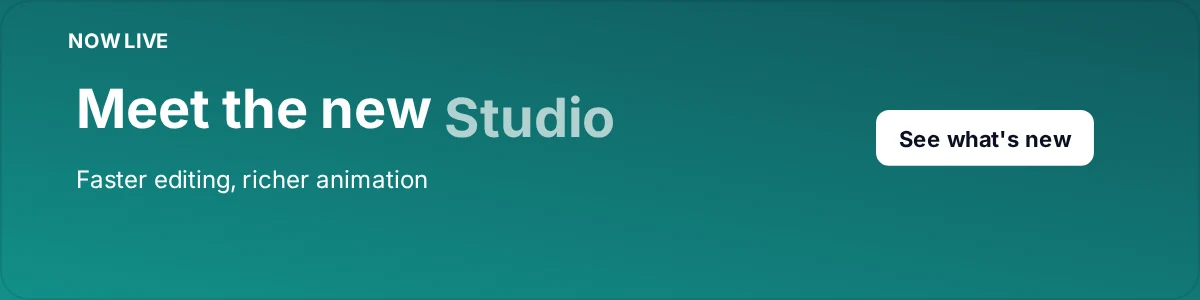


Each example opens in the editor as the design you can see here, ready for your own logo, wording and colours. They are Bannerly designs, not customer campaigns.
Create your Outlook banner in three steps
Design your banner
Add your logo, headline, supporting message, colours and call to action on a signature-sized canvas.
Add your animation
Choose motion effects for the logo, headline, supporting line and button using Bannerly's animation controls.
Preview and export
Check the layout in Bannerly's email preview, then export your finished banner as a static image or an animated GIF.
Bannerly's email preview is an illustrative layout preview. Send a test email to check how your banner appears in the Outlook versions and email apps your recipients use.
Choose a size that fits your Outlook signature
Microsoft does not publish a required banner size for signatures. These are Bannerly design presets - practical starting points rather than official Outlook requirements.
A compact strip with a short message.
A starting layout for a logo, message and CTA.
A taller design that needs additional mobile checking.
- Canvas dimensions
- The pixel size you design and export at - for example a 600 × 150 canvas.
- Displayed dimensions
- How large the image appears inside the signature. A 600 × 150 banner displayed 400 pixels wide is 100 pixels high when the proportions are preserved.
- File size
- The weight of the exported file. Animation adds frames, so an animated GIF is heavier than the same design exported as a still.
- Keep the proportions - resizing by one side inside Outlook stretches the artwork.
- Check the message is still readable once the banner is scaled down on a phone.
- Check the exported file's size before you roll a banner out to a team.
- Send a test email and look at the result in a received message, not in the editor.
Full detail on canvas versus displayed size, aspect ratio and file weight is in the Outlook section of our email signature banner size guide.
Animated banners, with a clear message even when motion stops
Whether a GIF plays depends on the Outlook version, its settings and the app your recipient is reading in.
What Microsoft documents
Microsoft documents that Outlook can play animated graphics, and that when the setting for playing animations is turned off only the first frame appears. Because you cannot control that setting from the sending side, design the first frame so it states the offer and the action on its own.
Source: Microsoft Support - the animated graphic in my email message doesn't work.
Making the banner clickable
The button drawn inside your banner is part of the exported image. To make the banner clickable in an email signature, apply a destination link to the inserted image in Outlook.
Use one destination that matches what the banner promises - the offer page, the event registration, the booking form. Step-by-step instructions are in the clickable banner section of the Outlook guide.
Deciding between motion and a still? Compare the trade-offs in animated vs static email banners, or follow the cross-platform steps in how to add a GIF to your email signature.
Add your banner to Outlook - or replace an old one
Export the banner from Bannerly, then insert the image into your signature in Outlook and apply the link. Bannerly creates the banner file; Outlook holds the signature.
Microsoft documents the signature workflows separately for new Outlook for Windows, classic Outlook for Windows and Outlook on the web, so there is no single menu path that fits every version. Our Outlook guide follows Microsoft's steps for each one.
Add a banner to your Outlook signature
Where the banner should sit, how to insert it with the picture control and how to keep the proportions.
Change or replace an existing banner
Swapping last campaign's banner for the new one, checking the destination link and testing a fresh message.
If the banner does not appear, arrives as an attachment or ignores the link, the Outlook guide's troubleshooting section works through the usual causes. Microsoft's own signature reference is how to add and change an email signature in Outlook.
Outlook signature banner questions
Can I create an Outlook signature banner for free?
What size should an Outlook signature banner be?
Can I use an animated GIF in an Outlook signature?
How do I make my banner clickable?
Can I use my own logo and colours?
How do I replace a banner already in my Outlook signature?
Does Bannerly automatically install the signature in Outlook?
Are the examples editable templates?
Give your Outlook signature a useful next step
Create a banner for your latest offer, launch or event, then add it beneath your signature.